 UsefulTab
How to make text fit on one page without making it unreadable
A cover letter, a handout or a one-page summary has a few lines too many, and they spill onto a second page. Shrinking the font is the usual fix, and also the change readers notice most. This guide covers a better order of changes, and how to apply it in a few clicks.
Need it done now? Paste your text, pick the paper, press Make it fit.
Plain text or a TXT/Markdown file in · a print-ready page or PDF out · nothing uploaded
At a glance
| Input | Pasted text, or a .txt or .md file. Formatting is not imported: Markdown symbols such as # and ** are printed as typed. |
|---|---|
| Headings | A short line on its own, with no full stop at the end, is printed in bold as a heading. Paragraphs are separated by a blank line. |
| Output | A print preview you send to a printer, or save as a PDF from the browser's print dialog. |
| Paper | US Letter, A4, Legal or A5, portrait or landscape. Fit to 1, 2, 3 or 4 pages. |
| Limits | The smallest it will go: 10.5 pt and 0.55 in margins in Comfortable, 9.5 pt and 0.38 in in Balanced, 8.5 pt and 0.25 in in Maximum fit. Past that it tells you the text does not fit. |
Tighten in the right order
Some changes are nearly invisible; others hurt readability. PrintFit works from least to most noticeable and stops as soon as the text fits:
- Paragraph spacing: the gaps between paragraphs.
- Line height: a little less leading still reads fine.
- Margins: narrower margins add a lot of room, as long as your printer can still reach the edge.
- Font size: the last resort, and only as much as needed.
The Comfortable, Balanced and Maximum fit modes set how far each step may go, so the same text can come out differently, as the example shows.
Worked example: a 710-word handbook on one Letter page
Repeat it with our sample file: sample-handbook.txt, an invented volunteer handbook of 710 words with 13 short headings (the title and each section). At the starting settings (12 pt serif, 0.72 in margins) it runs onto a second page. Paste it into PrintFit, keep US Letter, portrait, Fit to 1 page, and press Make it fit:
| Setting | Balanced | Comfortable |
|---|---|---|
| Result | Fits in 1 page | Fits in 1 page |
| Font | 12.0 → 11.3 pt | 12.0 → 10.5 pt |
| Margins | 0.72 → 0.39 in | 0.72 → 0.57 in |
| Line height | 1.42 → 1.10 | 1.42 → 1.20 |
| Paragraph gap | 8 → 2.0 px | 8 → 4.0 px |
Both modes fit it on one page, with different trade-offs. Balanced takes the paragraph gaps, line height and margins down to its limits first, so the font only drops to 11.3 pt. Comfortable keeps wider margins and more space between lines, so the font had to go down to its 10.5 pt floor. Pick whichever reads better on paper.
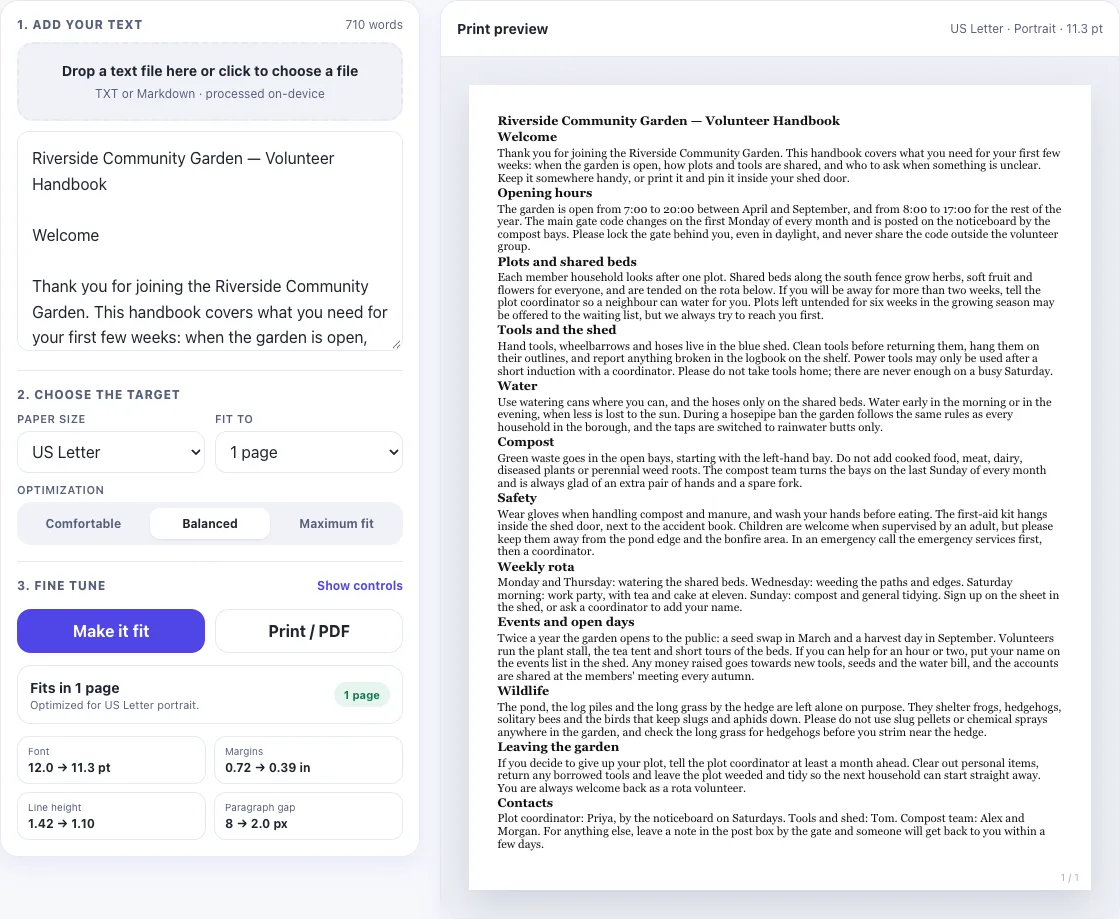
Measured in Chrome on macOS with its built-in Georgia font. Fonts and line breaking differ slightly between systems and browsers, so your values may be a step or two away from these.
Pick the paper you'll print on
US Letter and A4 have different shapes, so line breaks and page breaks land differently. A page fitted to one can spill over on the other. Choose the real paper before fitting.
If it doesn't work
| What you see | Why | What to do |
|---|---|---|
| “Needs more than 1 page” | The text is too long for the limits of the mode. Three copies of the sample (2130 words) give Needs more than 1 page (2 pages) even in Maximum fit, with the font already down to 8.5 pt. | Fit to 2 pages, or cut text. The Word Counter helps you judge how much. |
| The printed page breaks in a different place | The print dialog uses another paper size or scales the page. | Choose the same paper as in PrintFit and keep scale at 100% (Default). |
| Text near the edge is cut off | Maximum fit can go down to 0.25 in margins; some printers cannot print that close to the edge. | Use Balanced or Comfortable, which keep wider margins. |
# or ** appears on the page | Markdown is read as plain text. | Remove the symbols, or convert the document with Word to PDF if it is a formatted Word file. |
| A line you meant as a sentence is bold | It is short, on its own line and has no full stop, so it is treated as a heading. | End it with a full stop, or join it to the paragraph. |
Print it or save it as a PDF
Press Print / PDF and pick a printer, or choose “Save as PDF” to keep a fixed one-page file.
A note on privacy
PrintFit measures and lays out your text entirely in your browser. Your document is never uploaded, so CVs and private letters stay on your device.